By Rai Haider
October 15, 2026
You approve a box proof, the order arrives, and something is off. A thin white sliver runs along one edge of the lid, or the last letter of your tagline sits right on the cut. Both problems come from the same place: artwork that was not set up for the way printers actually cut and fold material.
This guide explains what bleed is in printing, how it relates to trim, the safe area, and crop marks, and what changes when the printed piece is a die-cut box instead of a flat flyer.
Bleed is the part of your artwork that extends past the final cut line. It is printed, then trimmed away.
Presses cannot reliably print right up to the edge of a sheet, and material shifts slightly as it moves through printing and cutting at speed. To get color or imagery that reaches the very edge of the finished piece, the printer prints on a larger sheet and cuts it down to size. If your background stops exactly at the cut line, even a tiny shift in the cut exposes unprinted stock. That is the white edge you were trying to avoid.
Full bleed simply means the design runs off every edge of the finished piece, with no border.
For flat print work in the US, the common bleed is 0.125 inch (1/8") on every side. Metric printers usually ask for about 3 mm, though some use anywhere from 2 mm to 5 mm.
Larger or more complex jobs often need more:
The safest rule is the simplest one: use the number your printer specifies. Bleed requirements are not universal, and most packaging suppliers publish their own or build it into their templates.
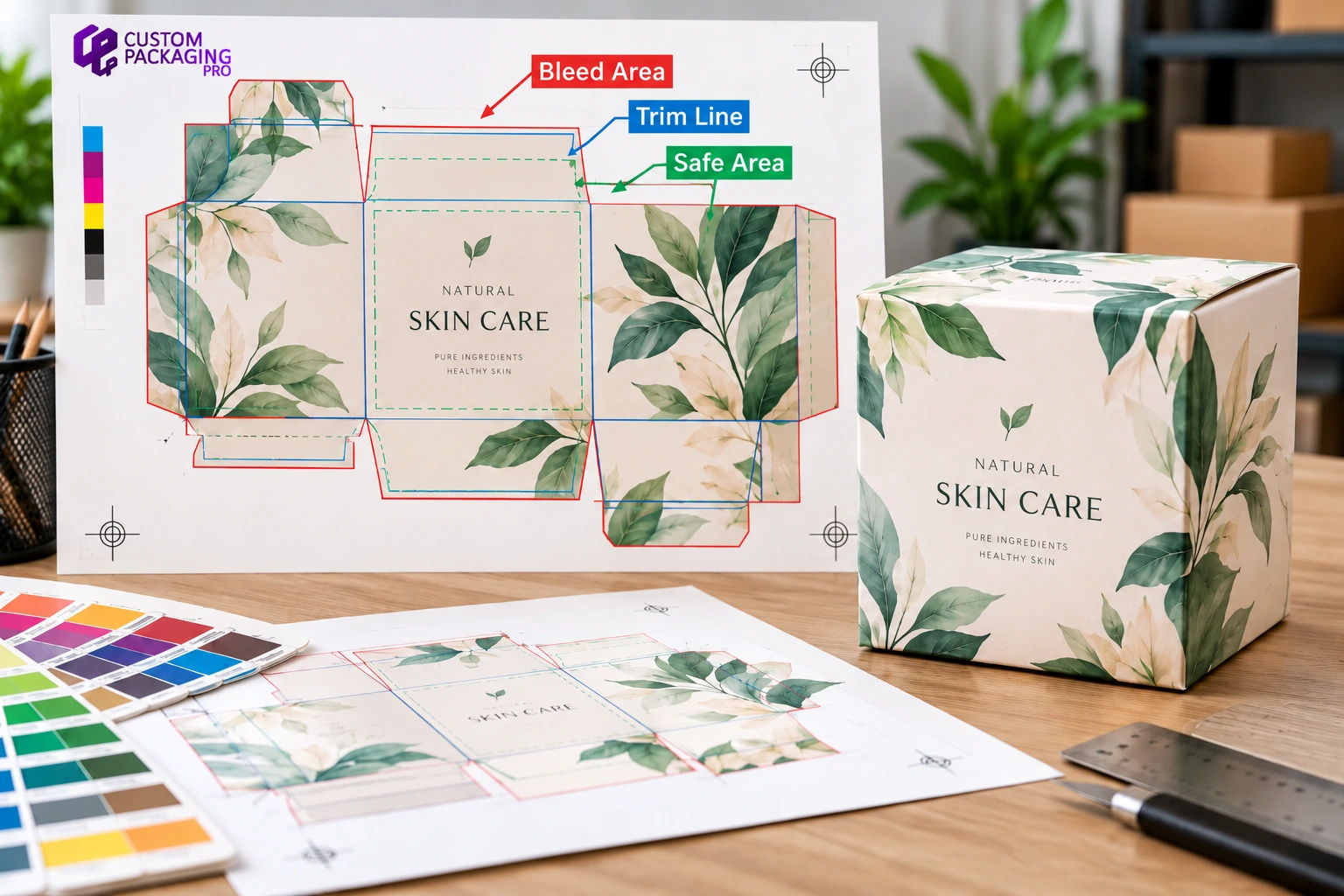
These three zones work together. Think of them as three nested boundaries.
| Zone | Where It Sits | What Goes There | What Happens to It |
|---|---|---|---|
| Bleed area | Outside the trim line | Background colors, patterns, and images that should reach the edge | Printed, then cut off |
| Trim line | The final cut edge | Nothing critical. It is a boundary, not a design space | Becomes the finished edge |
| Safe area (safe zone) | Inside the trim line | Logos, text, barcodes, ingredient lists, contact details | Always stays on the finished piece |
Trim is the intended finished size. On a flat piece, it is the page edge. On a box, it is the cut path of the dieline.
The safe area is the inner zone where anything important must live. Because the cut can drift slightly in either direction, content placed too close to the trim can be clipped. Recommended safe margins vary by printer. Common figures include at least 0.25" inside the trim for text on flat print, 1/8" from cut lines on some box templates, and 8 mm on some mailer box dielines. Again, check the spec you are given.
A practical way to remember it: bleed protects the edges from white gaps, and the safe area protects your content from the blade.
A margin is spacing inside the page that keeps content away from the edge. Bleed is extra artwork outside the page. They solve opposite problems. A design can have margins without bleed (a letter with a white border), or bleed with generous margins (a full-color box panel with text kept well inside the cut).
The slug sits even further out than the bleed. In Adobe InDesign, the slug area holds printer instructions, job sign-off information, color bars, and similar notes. It prints on the press sheet but is removed during final trimming, just like the bleed. The difference is purpose: bleed is part of your design, while the slug is production information that was never meant to appear on the product.
Not every job needs bleed. If nothing touches the edge, you can set the file at the exact finished size.
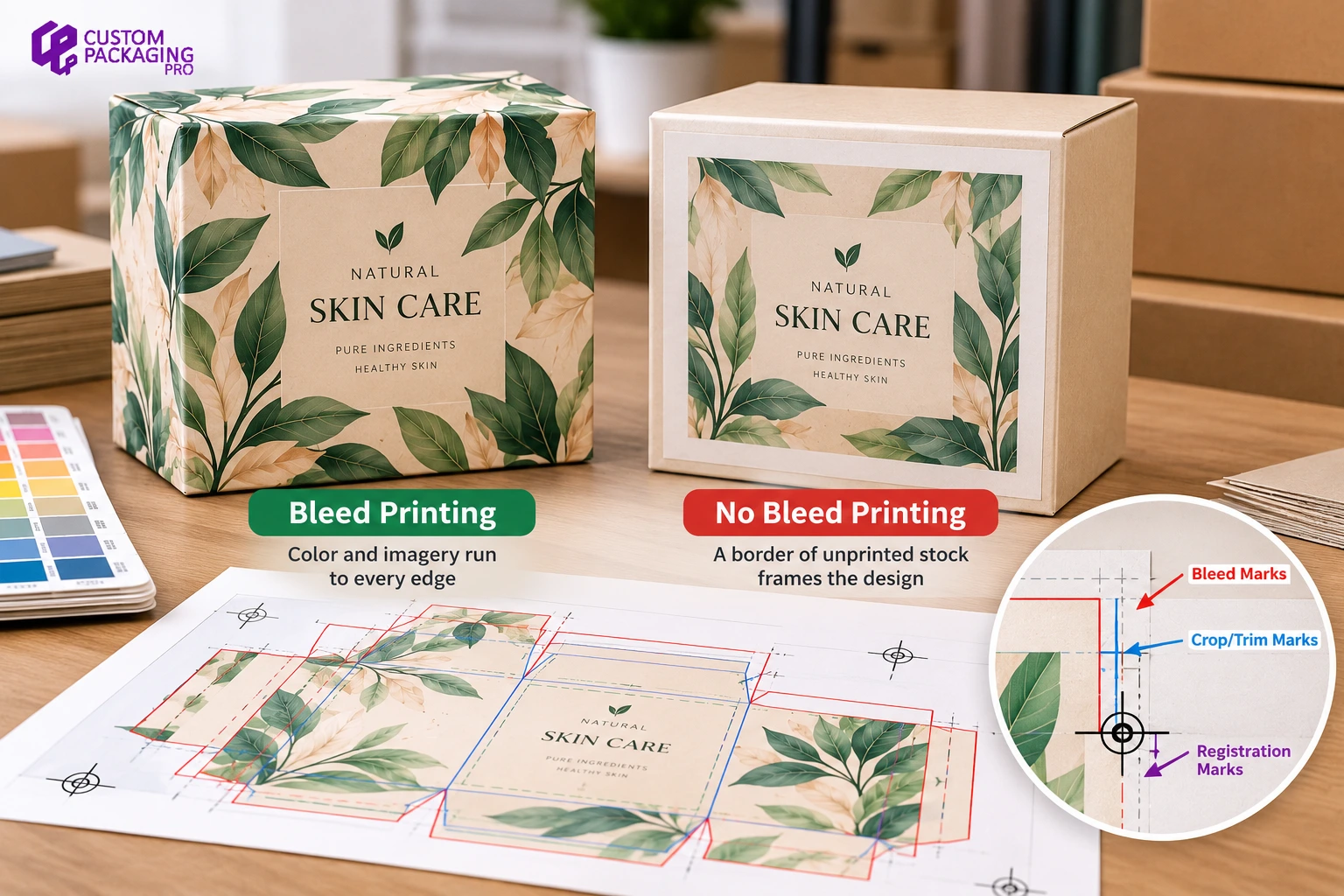
| Feature | Bleed Printing | No Bleed Printing |
|---|---|---|
| Look | Color and imagery run to every edge | A border of unprinted stock frames the design |
| File setup | Artwork extends past the trim on all sides | File matches the finished size exactly |
| Risk if set up wrong | White slivers at the edges if bleed is missing | Uneven-looking borders if the cut drifts |
| Typical uses | Retail boxes, product cartons, labels, flyers, postcards | Letters, certificates, some kraft or minimal designs |
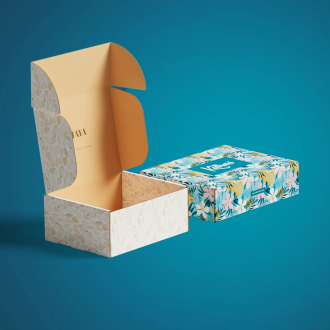
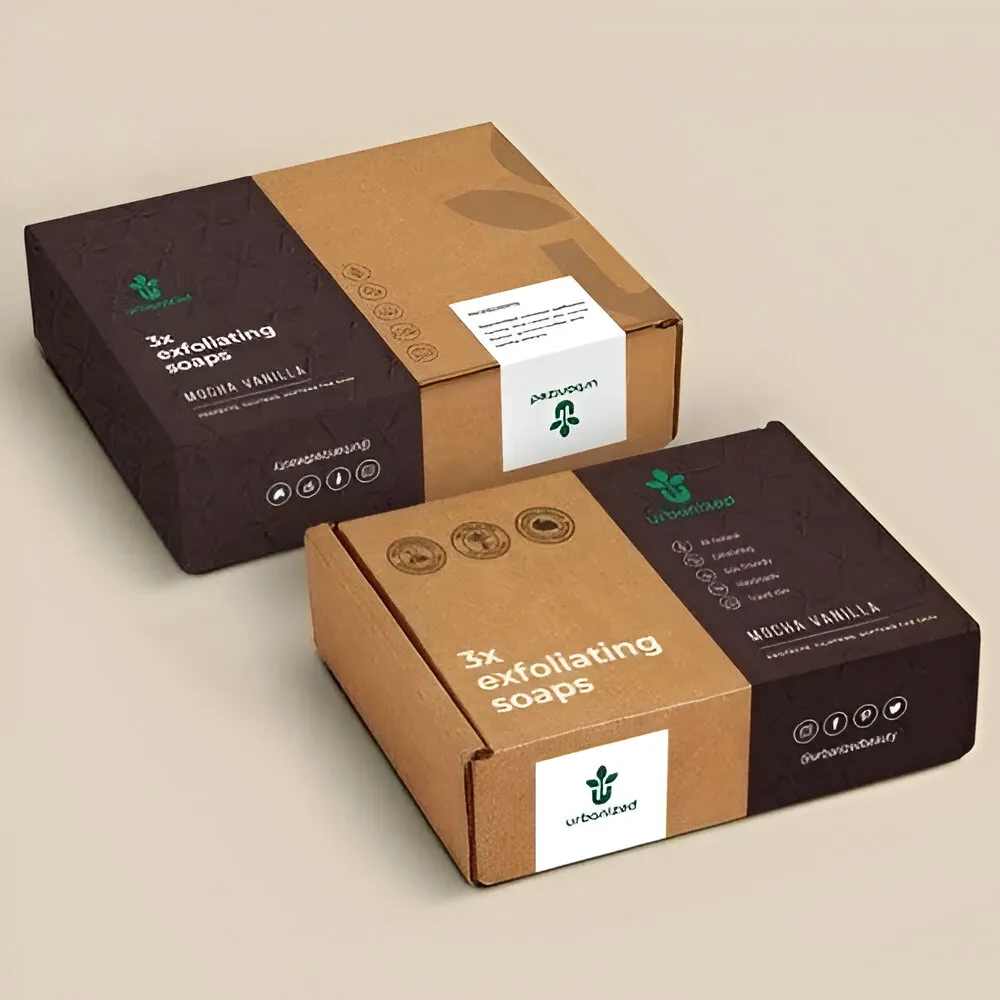
For most branded packaging, bleed is the default. A printed box usually has color wrapping around corners and across panels, and any gap shows immediately.

Printer's marks are thin lines and symbols placed outside the design to guide trimming and alignment. Graphic design software, including InDesign, can add them automatically when you export or print.
| Mark | What It Shows | Why It Matters |
|---|---|---|
| Crop marks | The corners of the trim size | Tell the operator where to cut |
| Trim marks | Same as crop marks | Different name for the same marks |
| Bleed marks | Fine hairlines showing how far the bleed extends | Confirm the bleed area is present and sized correctly |
| Registration marks | Targets used to line up printing plates | Keep CMYK and spot color layers aligned |
There is no practical difference. "Crop marks" and "trim marks" both refer to the short lines at each corner that mark the cut.
Crop marks are about cutting. Registration marks are about color alignment. They are usually centered on each side of the sheet and help the press operator confirm that each ink plate lines up. They are not fold guides.
Often, no. Many printers accept files with or without crop marks, as long as the bleed is included. For customize packaging, the dieline usually replaces crop marks altogether, since the cut path is not a simple rectangle. When in doubt, ask whether your printer wants marks on, off, or crop marks only.
If you do include marks, keep them clear of the bleed. InDesign's offset setting controls the distance between the page edge and the marks, and it should be larger than your bleed value.
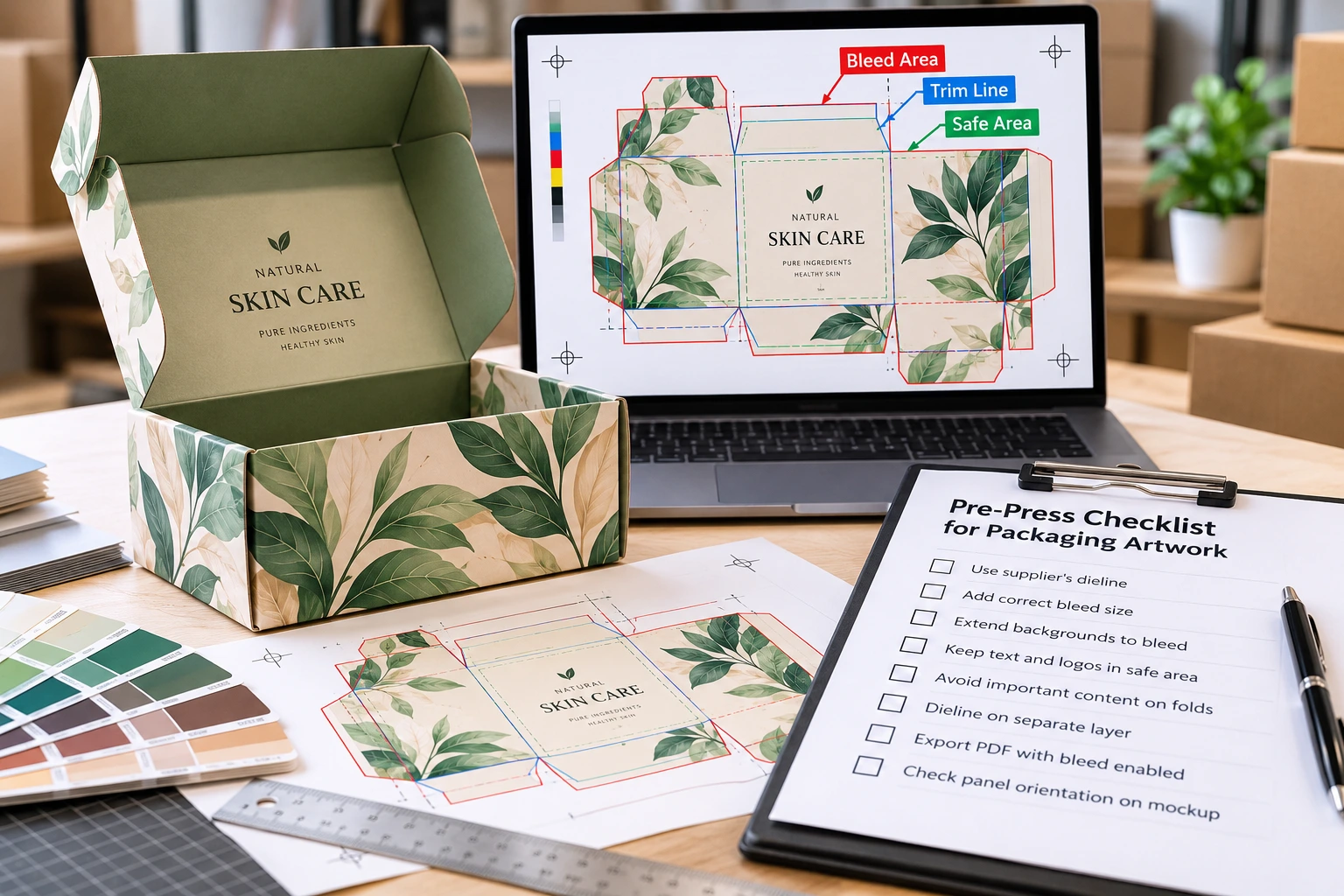
Flat print has one rectangular trim line. A box has a dieline: a flat template showing every cut, fold, glue flap, and tuck in the unfolded box. That changes how you think about bleed.
A typical packaging dieline separates line types by color, often on their own non-printing layer:
Color conventions are not standardized. One supplier may use green for bleed and black for cut, while another uses green for cut and red for folds. Always read the legend on the template you are given rather than assuming.
For brands ordering custom printed product packaging boxes, getting these details right at the artwork stage is far cheaper than catching them after a production run.
The exact steps depend on your software, but the logic is the same everywhere.
With a 0.125" bleed on every side, the total file size grows by 0.25" in each direction:
| Finished Size | File Size With 0.125" Bleed |
|---|---|
| 4" x 6" | 4.25" x 6.25" |
| 5" x 7" | 5.25" x 7.25" |
| 8.5" x 11" | 8.75" x 11.25" |
This math only applies to software without bleed settings. In InDesign or Illustrator, you keep the document at the finished size and let the bleed setting handle the rest.
Before you send files, run through this list:
If this feels like a lot to manage alongside running a business, that is exactly what free packaging design support is for. Custom Packaging Pro's design team can set up your artwork on the correct dieline, with bleed and safe zones handled before anything goes to print. The same applies across retail boxes and other custom packaging styles.